Connect your domain
At the end, you, your team and your agents send from your own domain, and mail to it can arrive in Pidgeon.
- Time
- About 10 minutes, then a wait
- You need
- The login for where your domain is managed
Open Domains and choose Add a domain.
Type your domain as it appears in a browser, without “www”, for example
yourcompany.com.Choose whether mail should arrive here.
Leave Receive mail here too on if Pidgeon should receive your domain’s mail. Turn it off to only send from Pidgeon. Then choose Continue.
If the domain already gets mail through Google or Outlook, Pidgeon says so and offers Use the subdomain: your agents get
agents.yourcompany.comand everyone else’s mail stays where it is. If you keep receiving on, Pidgeon asks before it moves anything.Add the settings Pidgeon lists.
Your domain’s page lists the settings it needs, each with a copy button. If your domain is with Cloudflare or Vercel, Pidgeon can add them for you: create a token there (Pidgeon links to the page), paste it in and choose Publish these records. Undo takes them off again.
Anywhere else, copy each setting into your provider’s DNS page. If somebody else runs your domain, send them the list.
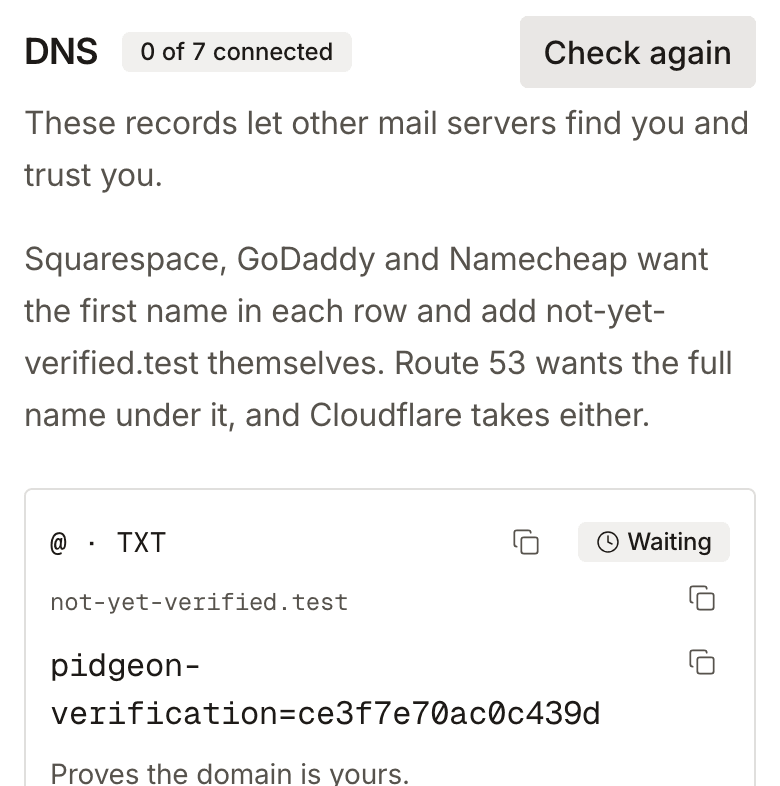
Wait for the check.
It usually takes under an hour, and can take up to 72. Pidgeon checks every 5 minutes and emails you when the domain is ready, so you can close the page. Check again checks now.
No domain yet? Agents can start on a free pidgeon.email address and move to your domain later.