Invite your team, and share hello@
At the end, your team is in the workspace and can all answer a shared address like hello@.
- Time
- About 2 minutes
- You need
- To be an owner of the workspace
Open Settings, then Members, and choose Invite somebody.
Enter their email address and pick a role: Member, or Owner if they should also invite and remove people. Choose Send invitation.
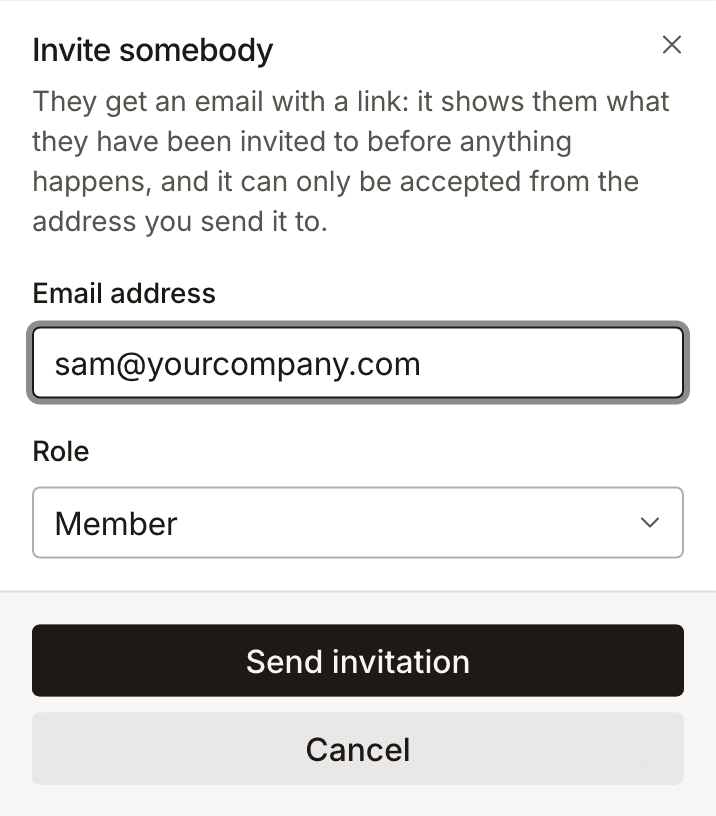
They accept from the email.
They see what they are joining before anything happens, and only the invited address can accept. The link lasts 7 days. Your plan sets how many people the workspace can have: 1 on Free, 10 on Pro and 25 on Startup. An invitation nobody has answered yet counts.
Share an address.
Open Addresses, choose Add an inbox and type the address, for example
hello@yourcompany.com. Tick Everyone here answers it and choose Create shared inbox. The tick shows once more than one person is in the workspace.Choose who can reach an inbox.
On the inbox’s row, choose Access. Add a person, or Everyone in the workspace, and pick Can read, Can read and send or Can also change this. Remove takes it away again.